Family starts asking what to buy long before the due date, and a group chat usually ends with three swaddles and nothing you actually need. Momcozy Baby Registry is a list you build on our site for you and the baby. Pregnancy, nursing, feeding, and recovery can take up a lot of it, with baby care beside them. You can buy the items yourself, or share one link so people shop from what you have chosen. You do not need to have used a registry anywhere else.
Key Takeaways
-
A typical baby registry is mostly nursery gear. Momcozy Baby Registry is built from your side of pregnancy: feeding, recovery, nursing, and baby care can all go on the same list.
-
You enter your name and the baby's arrival date, then choose who can see the list. Private works while you are still editing.
-
Add Item opens the popular row first, then a wider set of mom and baby products.
-
You can check out yourself, or share one link so friends add items to the cart and buy.
-
Keep the list short, mix smaller and larger items, and add or delete later if your feeding plan changes.
-
Starting one can include Baby Welcome Benefits. You can also claim 500 CozyCoins during the baby's birthday month.
What a Baby Registry Is For
A baby registry is the list you make before anyone else starts shopping. In plain terms, a baby registry is yours first: you choose what you and the baby need, and you can buy it yourself. If family members want to help, they use one link and shop that same list, so the gifts match what you already picked.
Most baby registries open with the nursery: cribs, strollers, onesies. The part that gets thin is yours. This list starts with what you will use.

How Momcozy Baby Registry Differs From a Typical One
It lives on Momcozy.com, and the range is written for you. Pregnancy care, nursing, feeding, and recovery sit next to baby care, so the list can hold a lot of mom products alongside what the baby needs.
-
A typical baby registry is mostly baby gear. This list gives you room for pregnancy, postpartum, feeding, nursing, and recovery.
-
Mom products are a real part of the catalog: support for your body, a feeding setup, and recovery, alongside what the baby needs day to day.
-
Before you create the list, you choose who can see it, and whether guests may mark a gift.
-
You can pay for the items yourself, or send one link so a friend adds one or more products to the cart and pays.
-
After a friend buys, they can send their name and an optional wish. The email is how you know who to thank.
You still decide what goes on the list. Nothing in the product rows is required.
How to Use Momcozy Baby Registry
You need a Momcozy account, your name, and the month, day, and year the baby is arriving. From there the path is: create it, choose who can see it, add products, then either check out yourself or share one link.
Create it: name, arrival date, then Create Registry
Sign in, open the registry page, and choose Get Started. If you do not have an account yet, that same step creates one. You can do this on your phone or on a computer.
The required fields are your name and when the baby is arriving. The arrival date is three dropdowns: month, day, and year. It is stored on the list. It does not pick products for you. You still choose every item later.
Two boxes are optional. One is a registry name, if you want something more specific than your own name. The other is a short introduction, such as a shower date or a note you want guests to see. There is no shipping-address field on this window.
Choose Create Registry when the fields are set. The next screen is your registry page, not another form. The name and introduction you typed sit at the top.
Choose Public, Shareable, or Private, and Allow or Disallow Marking
You make both choices before you create the list.
-
Public means people can open the list from a direct link, and it can be searched on Momcozy.com.
-
Shareable means only people who have your link can see it.
-
Private means the list is visible only to you. It cannot be searched, and a link will not open it for someone else.
Purchase marking is separate. Allow Marking lets other people mark an item as purchased and notify you. Disallow Marking means guests cannot mark items as purchased. If you turn marking off, do not expect the gift email described below.
Private is the setting to use while the list is still a draft. Shareable is the usual choice once you want family to have the link.
Add Item, then browse products with real mom feedback
On the first screen of your registry page, Add Item is the button that starts filling the list. It does not drop products onto the list by itself. It takes you to the product section, where real moms share their feedback on how they use each item.
Products are grouped by what you need at your current stage: Must Have, Care Better, and Share the Care. Read what other moms actually say, see what they rely on, and add only the items that fit your stage.
If you want a category check before you click anything, a baby registry checklist is a separate read. Use it to notice gaps, then add only what you want. Packing for the birth is a different job. A hospital bag is what you carry in. The list is what you hope arrives at home, or what you buy yourself before the rush. If you want a shorter list on purpose, a minimalist baby registry is a useful way to decide what to leave off.
Manage All Items, then Proceed to Checkout if you are buying
After products are on the list, the first screen shows the registry name, the arrival date, how many items are on it, how many are marked purchased, Edit Profile, and Share Registry. Manage All Items is where you change what is already there. You can add more, and you can delete. On that page the add control reads + Add Items. That is a different button from Add Item on the first screen.
When the selection looks right and you want to buy it yourself, choose Proceed to Checkout. Adding an item does not charge your card. Money moves when someone checks out.
Come back here if your plan changes. Plenty of people add nursing items, then later need more pumping supplies, or the other way around. Delete what no longer fits and add what you will actually use.
Share Registry, then friends add to cart and use I Purchased This
Share Registry opens a window with Save Image, Copy Link to Share, Share to Facebook, and a QR code. Copy Link to Share is the link you send. Put that one link on the shower invite, or send it when someone asks what to buy. You do not need a second message for every product.
Guests who open it do not see your manage page. They see the name, the introduction, the item count, and the purchased count. Items are grouped by category, and each line shows how many you requested. Tapping Add on a product puts it in the cart. They can add one item or several, then pay.
After they have bought, I Purchased This asks for a name, which is required, so you know who the gift is from. A wish is optional. The wish prompt suggests a short message to the mom-to-be. They choose Send My Wish.
You get an email with a subject along the lines of "A Gift Was Purchased for You!" It names your friend, shows the wish, names the product marked as a gift on your list, and includes View Your Gift. That name and wish are what you use when you say thank you. Guests can also save the registry, or add those products to a registry of their own. Search on our site is only for a public list. Someone who loses a Shareable link has to ask you for it again.

Tips for Building the List
A useful list is short, built around what you will use, and still editable after you share it. There is no required number of items, and the arrival date does not finish the list for you.
Start in the second trimester, and keep it private while you edit
A lot of people start early in the second trimester, then share before shower invites go out. That is a comfortable window, not a deadline. If people are already asking, start now. Choose Private while you are still deciding, then switch to Shareable when you want family to have the link.
Put mom care on the list first
Start with pregnancy support, nursing, feeding, and postpartum recovery. A pregnancy belt is a common early add, and nursing bras belong once you know you will wear them. Baby care for home comes next. If this is not your first baby, skip what you already own and add the recovery and feeding pieces you will use again.
Add one or two choices for each need
One feeding setup is enough. A second version of the same job usually sits unused. If you are unsure, add the option you are most likely to use and swap it later from Manage All Items.
Mix smaller gifts and larger ones
Some guests want a small gift. A few will take a bigger one. Include smaller items, such as milk storage bags, alongside larger ones you hope to receive or buy yourself, such as a bottle washer. Look at the list the way a guest will: is there something modest, and is there something you would be glad to have covered?
Match the list to your days
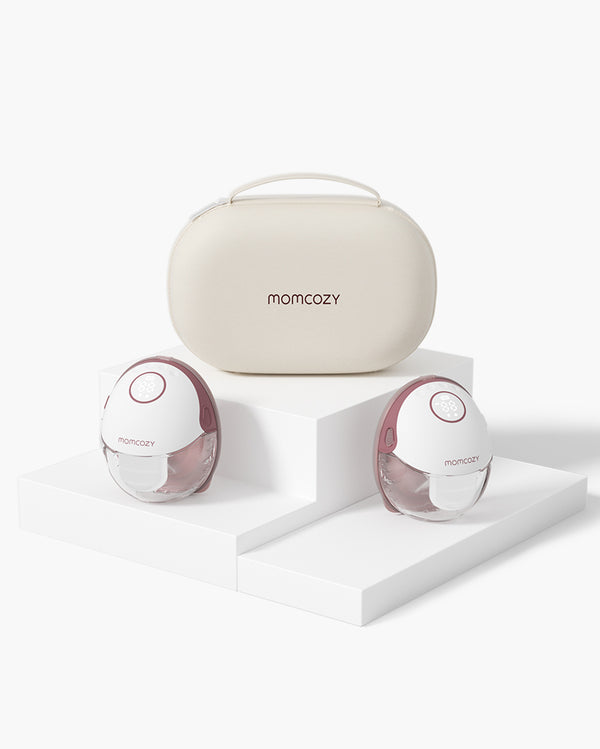
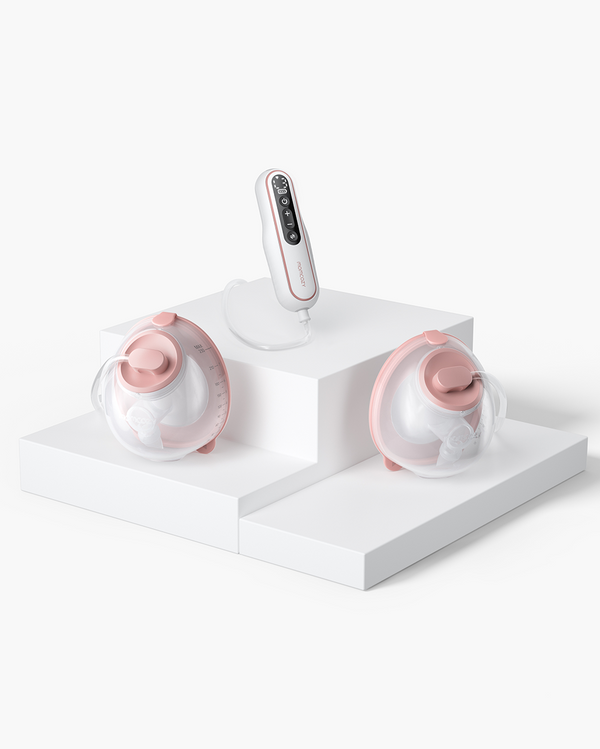
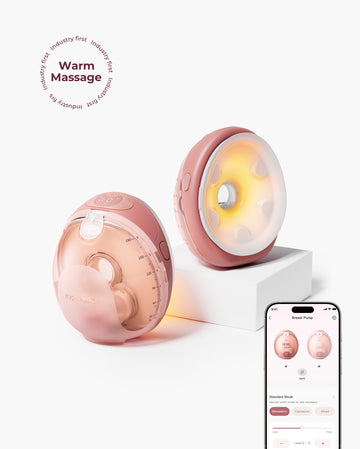
Your feeding plan, whether you will be home or back at work, and how much you can store should decide the rows. If you will be away from the baby, a wearable breast pump can sit in your bra and leave your hands free. In that range, Wellness 1 is the warm-massage pump, and Air 1 is the slimmer pump for days you want it closer to your body. If nursing becomes pumping, or you drop something you added early, edit the list. The link can stay the same.
Look ahead a few months past the first weeks
The early weeks fly by. Nursing, feeding, and recovery items you will still want after that belong on the list. Toddler gear and a duplicate of every newborn item do not.
If you want a wider baby-gear pass, use the checklist article for categories, then come back and add only the gaps. This page is for building your list, not for stocking a whole nursery.
Write a short note for guests
The optional introduction is the place for a shower date, a feeding preference, or a line about what you already have. Guests see that note at the top of the shared page. A sentence there saves a lot of texts.
Check the list before you share it
Before you copy the link, delete anything you will not use, including duplicates and gifts that only looked nice in the popular row. Read it once as if you were the guest. If a line needs an explanation, put that in the introduction.
Then send one link. The invite is the natural place. If there is no shower, send it when someone asks. People who open it add what they want to the cart, pay, and use I Purchased This so you get their name. You can still add and delete from Manage All Items after the link is out.
What You Get for Starting One
The list works even if you never claim a perk. What is still offered for starting is Baby Welcome Benefits and a birthday gift of CozyCoins. An older registry promotion, with gift cards and short-term discounts, has ended.
Baby Welcome Benefits
The Baby Welcome Benefits are our way of welcoming a new parent. They are tied to creating the registry and include:
-
During Black Friday, first-time registry creators have a chance to receive a trial pack of breast milk storage bags (50 available per day). Available to US customers only.
-
300 CozyCoins (available in all regions)
-
Mom E-Magazine (available in all regions)
-
Expert-led on-demand online courses (available in all regions)
Together, these are designed to support you through the whole motherhood journey.
500 CozyCoins in the baby's birthday month
The birthday gift is 500 CozyCoins. You claim them by logging into the Member Center during the baby's birthday month. After that month ends, they cannot be claimed. Each baby can claim this once per year. CozyCoins usually arrive instantly. If you do not see them, refresh the page, or log out and back in.
Where to check that the CozyCoins arrived
In the Member Center, open CozyCoins, then CozyCoins Details, and look for the Baby Birthday entry. That is the place to confirm they landed. Do not count on a screenshot from an old promotion.

FAQ: Quick Answers
These are the practical questions, separate from the steps above.
How is Momcozy Baby Registry different from a regular baby registry?
A regular baby registry is usually baby gear. This one is built from your side of the pregnancy: a wide set of mom products for pregnancy, postpartum, feeding, nursing, and recovery, plus what the baby needs. You choose who can see it, you can buy it yourself or send one link, and a friend can email you their name and a wish after they purchase.
When should I start a baby registry?
Often early in the second trimester, and before shower invites go out. If people are already asking, start now. Use Private while you edit. The arrival date you enter does not have to be the day you finish the list.
What should I add first?
Start with the product section, where real moms share their feedback: see what other moms are actually buying and why. It is the fastest way to know what fits your stage and makes the motherhood journey smoother. Then add the mom care you will use — pregnancy support, nursing, feeding, and recovery — followed by baby care for home. If you are unsure between nursing and pumping, add the setup you expect to use and change it later from Manage All Items.
What should I leave off?
Duplicates of the same job, cute extras you will not use, and anything you already own. A full nursery inventory belongs in a checklist, not on a first pass. You can add a gap later.
How many items do I need?
There is no required number. A short list you will use is enough. You can add and delete after you share.
Should I include both smaller and larger items?
Yes. Smaller items give most guests something they can choose. Larger items are there for the people who want to cover more, or for you to buy yourself.
Do I have to finish the list before I share it?
No. Add a few items and send the link when you want people to shop. You can add and delete later from Manage All Items. Guests see the list as it is when they open the link.
Does Add charge my card?
No. Add fills a cart or a list. Money moves at checkout, whether that checkout is yours or a guest's.
Can strangers find my list?
Only if you chose Public. That option can be searched on Momcozy.com. Shareable needs the link. Private stays visible only to you, and a link will not open it for someone else.
Can I buy the gifts myself?
Yes. From Manage All Items, Proceed to Checkout is there for that. Friends do not have to be the ones who pay.
How does the mom know who sent the gift?
After the purchase, the guest chooses I Purchased This, enters a name, and can add a wish. Send My Wish emails you. The name and wish are what you use to say thank you. If you chose Disallow Marking, that path is off.
Can I put postpartum and mom items on a baby registry?
Yes. Pregnancy, nursing, feeding, and recovery belong on this list, next to baby care. If this is not your first baby, add the mom items you do not already have.
What if someone sends me a link?
Open it, add one or more items to the cart, and pay. After you buy, choose I Purchased This, enter your name, and add a wish if you want. Send My Wish is what emails the mom.
When can I claim the 500 birthday CozyCoins?
Only during the baby's birthday month, and only once per baby each year. Log into the Member Center in that month. After the month ends, the CozyCoins cannot be claimed.
Conclusion
If you have never used a registry, the useful version is short. Enter your name and the arrival date, choose who can see the list, and use Add Item for the mom products you will actually use, plus a few things for the baby. Keep it editable, send one link when you are ready, and use the gift email when you want to say thank you. Momcozy Baby Registry is that list: pregnancy, feeding, recovery, and baby care in one place. When you are ready, open the registry page and choose Get Started.