A baby monitor that connects to phone uses an app to stream live video and audio from the nursery to a smartphone. You get eyes on the baby without walking down the hall.
But the experience varies a lot. An app-only baby monitor behaves differently than a dual-mode setup with a physical parent unit. Each comes with its own range, reliability, and backup tradeoffs.
Pairing the app is just step one. The real test is whether the system holds up night after night. That means a routine you trust, easy caregiver access, a backup plan, and a way to fix Wi-Fi drops fast.
Key Takeaways
- A phone-connected baby monitor is a viewing workflow, not just an app feature; app-only, parent-unit and dual-mode systems behave differently in everyday use.
- The practical decision is who needs to check the baby, where they are, and whether the phone can realistically remain the only viewer.
- Caregiver sharing is valuable, but account limits, permissions and ease of use for grandparents or babysitters should be checked before purchase.
- Wi-Fi and app failures matter more in phone-first systems, so families should understand the fallback behavior before overnight use.
- Troubleshooting should begin with power, network, signal, permissions and updates before reset/re-pairing steps.
- A local parent-unit monitor can be the better choice when remote viewing is unnecessary or Wi-Fi/app dependence creates more friction than value.
How to Connect a Baby Monitor to Your Phone

A local parent-unit model is usually plug-and-play. Getting a phone-connected monitor running takes a bit more legwork, but you end up with remote viewing and the ability to loop in another caregiver.
Before You Start
Not every brand uses one app across its whole lineup, so pull up your monitor's manual or product page first to find the exact name.
You'll need an account before you can pair anything. If this is your first time opening the app, set one up with a password you haven't reused elsewhere.
Give the camera a minute to power on fully. Jumping into pairing too early is a common source of failed connections.
Pair the Camera
From here, the app takes over. Point your phone at the QR code it shows, or pick your camera from the device list, and follow along.
Wi-Fi band matters more than people expect. Some cameras only talk to 2.4 GHz networks, so dig into your manual if you're not sure which one your model needs.
Got a router that broadcasts a single combined network name? You may have to pick the right band by hand instead of letting it auto-select.
From there, it's just cleanup - naming the camera, maybe assigning it to the nursery, whatever the app asks for next.
Confirm the Connection
Pull up the live feed and listen for clear audio before calling the setup done.
Head into your phone's settings and the app itself to switch on notifications. Skipping either one means you could miss an alert.
Bringing in a partner or sitter? Add them through the account settings now, and have them check that their feed actually loads before you rely on it.
Every model handles this a little differently, and app updates shift things over time. If a step doesn't match what's on your screen, trust the manual over this guide.
How Phone Viewing Works in Real Life
Once a monitor is paired, the app tends to fit into the day in a few distinct ways, depending on where you are and what you need.
At-Home Check-Ins
Most parents open the app when they're in another room and want a quick look without walking to the nursery. It's faster than tiptoeing down the hall, and it avoids waking a baby who's just settled.
Away-From-Home Viewing
Remote access lets you check in while running errands, at work, or traveling. This only works if the camera stays connected to power and Wi-Fi, and your phone has its own data or Wi-Fi connection. If either side drops, the feed won't load until it reconnects.
Shared Caregiver Access
Most apps let you add a second viewer, so a partner, grandparent, or babysitter can check the same feed from their own phone. This helps with co-parenting or when someone else is watching the baby and you still want visibility. Access is usually managed through account settings, and each caregiver needs their own login.
Notifications Instead of Constant Watching
Rather than keeping the app open all day, many parents rely on notifications for sound or motion. The phone alerts you when something happens, so you can glance at the feed only when it matters. This cuts down on screen time spent watching an empty crib.
Together, these four patterns cover most of how phone viewing actually gets used, not as one feature, but as small habits that adapt to the moment.
App-Only, Parent Unit, or Both? Choose by Caregiver Workflow

The right viewing method comes down to who checks on the baby, when, and where, not just which features sound appealing.
Who's checking? |
When / Where? |
Best fit |
Parent, on their phone |
Anywhere, anytime |
App-only |
Overnight caregiver, half-asleep |
Bedside, middle of the night |
Parent unit |
Grandparent or babysitter |
At home, unfamiliar with apps |
Parent unit |
Working parent |
Away from home, during the day |
App-only or dual-mode |
Multiple caregivers rotating |
Mixed home and away |
Dual-mode |
Best for Phone-First Households
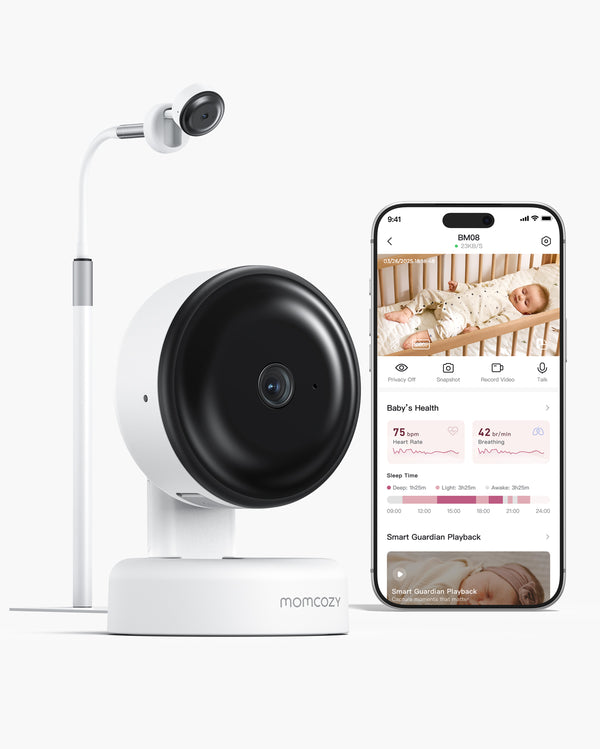
If one or two parents handle most of the monitoring and want remote access while running errands or at work, an app-only setup, like the BM08, makes sense. It skips the extra hardware and keeps everything on a device you already carry.
Best for Nighttime Simplicity
A parent unit is easier for groggy, middle-of-the-night checks. There's no app to unlock, no login, and no risk of a dead phone battery leaving you without a feed. This also suits grandparents or caregivers who aren't comfortable navigating an app.
Best for Mixed Caregivers
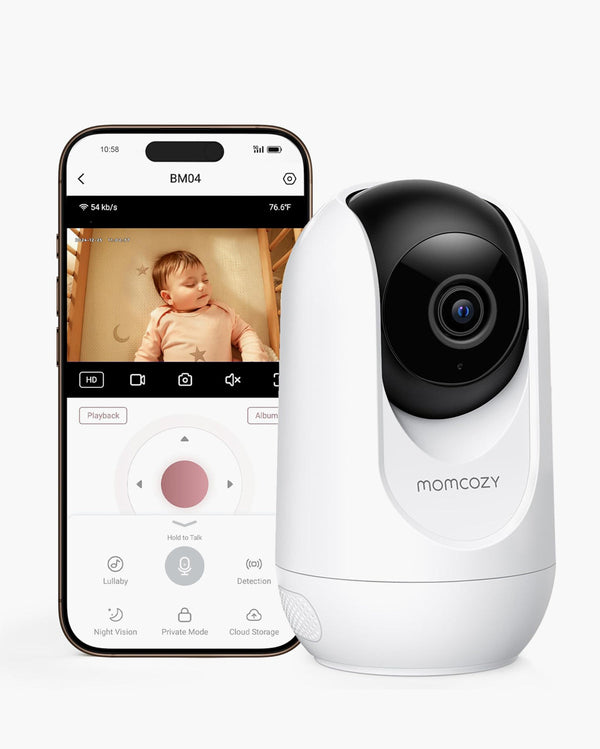
Households with rotating caregivers — a parent during the day, a grandparent overnight — often do better with a dual-mode monitor like the BM04. It gives phone access to whoever needs it remotely, while still offering a simple screen for whoever's home and doesn't want to deal with an app.
For a fuller breakdown of tradeoffs, see the Wi-Fi vs Non-WiFi baby monitor guide.
Sharing Access With a Partner, Grandparent, or Babysitter
Most baby monitor apps let more than one person view the feed, but the setup usually distinguishes between a primary account and invited users.
Family Sharing
The primary account holder typically sets up the monitor and then invites others by email or a shared code. Invited users often get their own login, so no one has to share a single password. What they can actually do - view only, adjust settings, manage notifications - may vary, so it's worth checking each caregiver's permissions before handing off access.
Before adding anyone, ask whether they'll actually use the app regularly, or whether a quick verbal check-in covers their needs. Not every caregiver needs full access just because it's available.
When a Separate Screen Is Easier
Grandparents or babysitters who aren't comfortable with apps may find a dedicated parent-unit screen simpler than logging into an account. If your monitor supports dual-mode viewing, this avoids walking someone through app setup during a rushed handoff.
It's also worth reviewing who has access periodically. Remove old accounts, like a babysitter who no longer sits, and double check permissions if you've added several caregivers over time. Most apps handle this through account settings, though exact steps depend on the model and app version.
Nighttime Phone Monitoring: The Questions Most Guides Miss
Daytime app use is a no-brainer. Come nighttime, the calculus changes a bit — that same phone is also pulling duty as your alarm clock, sitting on its charger, and handling everything else that pings it while you sleep.
Before you commit to app-only for overnight checks, a few things are worth sorting out:
Where's the phone actually charging? If it's plugged in down the hall or in a different room entirely, you're adding a delay every single time you want to glance at the feed.
Does it keep monitoring once the screen's locked or you've tabbed over to something else? This isn't a given. Behavior here depends on the phone, the app, and the OS running it, so it's worth testing on your own setup instead of assuming it behaves like a dedicated screen would.
If something happens, whose phone gets the alert first? Whoever's device is closest needs to actually have the app installed and be logged in and not just the parent who handled the original setup.
Would things just be simpler with a screen by the bed? No unlocking involved, no competing with texts or other notifications, and no risk of it dying from being used all day.
None of this is a knock on app-only monitoring. It just means the phone's pulling double duty overnight, and it's worth making sure it can actually handle both jobs before you're leaning on it at 3 a.m.
What Happens If Wi-Fi, Internet, or the App Fails?
Not all outages behave the same way, and the fallback depends heavily on your monitor's architecture.
|
Failure type |
App-only |
Dual-mode |
Local parent unit |
|
Home Wi-Fi outage |
Feed likely lost |
Local screen may still work* |
Unaffected |
|
Internet/cloud outage |
Remote access likely lost |
Local screen may still work* |
Unaffected |
|
App won't load |
No viewing available |
Local screen may still work* |
Unaffected |
|
Phone unavailable |
No viewing available |
Local screen may still work* |
Unaffected |
*Confirm with your model's manual whether the parent unit connects directly to the camera or also depends on Wi-Fi.
If the Home Internet Goes Down
An app-only monitor generally relies on a live connection to stream video, so a Wi-Fi outage can interrupt viewing. A dual-mode monitor's parent unit may keep working if it pairs directly with the camera rather than routing through the internet, but this varies by model.
If the App Won't Load
App issues aren't always a network problem. Before assuming your Wi-Fi is at fault, check whether the app needs an update, or whether the camera itself has gone offline.
If the Phone Itself Is Unavailable
A dead battery or a phone that's simply out of reach means an app-only setup has no backup. This is where a physical parent unit earns its keep, since it doesn't depend on anyone's phone being charged or nearby.
Knowing your monitor's fallback behavior before you need it, not during a 2 a.m. outage, is worth the few minutes it takes to check your manual.
Troubleshooting: Why Your Baby Monitor Is Not Connecting to the App
Most connection problems trace back to a handful of common causes. Working through them by symptom is faster than restarting everything at once.
|
Symptom |
First check |
Next check |
|
Cannot pair |
Phone is on the correct Wi-Fi band |
Camera is fully powered on and in pairing mode |
|
Camera shows offline |
Router and camera both have power |
Camera hasn't moved out of Wi-Fi range |
|
Feed won't load |
App is updated to the latest version |
Log out and back into the app |
|
Notifications missing |
App has notification permissions enabled |
Alerts are turned on inside the app, not just on the phone |
|
Shared access not working |
Invited caregiver accepted the invite |
Caregiver is logged into their own account, not yours |
Cannot Pair the Camera
First, double check your phone's on the right Wi-Fi band. Plenty of monitors are stuck with 2.4 GHz only, so that's worth ruling out early. The camera also needs to actually be powered up and sitting in pairing mode before the app has anything to find. Still stuck? Go back and re-enter your Wi-Fi password carefully. A single mistyped character here trips up more setups than people expect.
Camera Shows Offline
This one's rarely about the app itself. It's almost always power or distance. Check that both the camera and the router are actually getting power, especially if there was a recent outage that might have knocked something loose. And if the camera's sitting far from the router, try moving it closer before you troubleshoot anything else; a weak signal can look exactly like a connection failure.
Video Feed Will Not Load
Paired fine but nothing's showing up? Look for a pending app update before anything else, since running an old version is one of the more common reasons the feed just won't display. Beyond that, signing out and back in tends to shake loose whatever glitch is going on, without forcing you through a full re-pair.
Notifications Are Missing
More often than not, this comes down to permissions rather than the monitor itself. Go into your phone's system settings and confirm the app is actually allowed to send notifications, then separately check inside the app that sound and motion alerts are switched on. These are two different toggles, and people miss one of them.
Shared Access Is Not Working
If someone you invited still can't see the feed, start by confirming they actually accepted the invite and are logged into their own account and not trying to piggyback on yours. Worth also checking what permission level they were given, since that can limit what they're able to see.
Worked through all of this and still stuck? Your monitor's model-specific support page is built for exactly this and will go further than a general guide like this one can.
What Should a Good Baby Monitor App Let You Do?
Before buying, it helps to judge an app the same way you'd judge any tool you'll use daily: does the core job work reliably, without extra friction?
|
Feature |
Why it matters |
|
Stable live video/audio |
A monitor you can't trust to stay connected isn't much use overnight |
|
Two-way audio |
Lets you soothe your baby without walking into the room |
|
Customizable notifications |
Alerts for real events, not constant noise you start ignoring |
|
Caregiver access |
Lets a partner or sitter view the feed from their own login |
|
Recording or history |
Useful if you want to check what happened while you were away |
|
Privacy controls |
Clear account security settings protect your family's video feed |
|
Transparent pricing |
Know upfront what's free and what requires a subscription |
|
Easy settings management |
Adjusting alerts or camera angle shouldn't require a manual |
The most important of these is the first one. Two-way audio and smart alerts are nice, but they don't matter much if the live feed drops constantly or takes too long to load. Start by confirming the basics work well, then weigh the extra features.
Pricing is also worth checking early. Some apps unlock their full feature set only with a subscription, so what looks included on the box may not be included for free.
Privacy and Security Basics for App-Connected Monitoring
Remote access is convenient, but it also means your monitor's account and network deserve the same care as any connected device.
A few habits cover most of the basics:
- Use a strong, unique password for your monitor's app account
- Turn on two-factor authentication if the app supports it
- Secure your home Wi-Fi with WPA2 or WPA3 encryption
- Keep the app and camera firmware updated
- Only share access with people you actually trust
- Remove a caregiver's access once they no longer need it, like a babysitter who's moved on
None of this makes a system unbreakable, but it closes off the most common ways accounts get compromised. For a deeper walkthrough, see the full Wi-Fi baby monitor security guide.
When a Phone-Connected Monitor Is Not the Best Fit

App-connected monitoring isn't automatically the better choice for every family. Plenty of parents do just fine, or even prefer, a local parent-unit setup.
If your home Wi-Fi is spotty or your router sits far from the nursery, a local monitor sidesteps the problem entirely, since it doesn't depend on a network connection to work.
Some families simply don't need remote viewing. If you're rarely away from the baby without another adult present, the ability to check in from across town may not add much value day to day.
A dedicated screen can also be easier for caregivers who aren't comfortable with apps, accounts, or logins. Handing someone a parent unit is simpler than walking them through a setup during a rushed handoff.
Member price
$219.99$249.99código Ahorrar $20
And some parents prefer to keep monitoring separate from their phone altogether, so it's not competing with notifications, calls, or a dying battery.
None of this makes a local monitor a downgrade. It's a different set of tradeoffs, and for households that value simplicity over remote access, it's often the more practical choice.
Quick Workflow Fit Guide
|
Household pattern |
What matters most |
Setup that may fit |
|
Phone-first, remote-heavy |
Checking in from work, errands, or travel |
App-only |
|
Mixed caregivers, nighttime screen preference |
Some caregivers want an app, others want a simple bedside screen |
Dual-mode |
|
Local-only, unreliable Wi-Fi, simplicity-first |
A setup that doesn't depend on network or an account |
Local parent unit |
The pattern that fits your household day to day matters more than any single feature. A phone-first parent gets little value from a screen they never look at, and a caregiver who avoids apps won't benefit from remote access they never use.
Wi-Fi reliability also plays a bigger role than most families expect going in. A strong signal in the nursery makes app-only or dual-mode monitoring straightforward. A weak one makes a local parent unit far less frustrating to live with.
Use this as a starting point, not a final answer. Most households land somewhere between these three patterns rather than neatly inside one.
Frequently Asked Questions
Can a baby monitor connect to my phone?
Yes. Wi-Fi baby monitors pair with a smartphone app that streams live video and audio from the camera. Not every monitor supports this, so confirm the connection type before buying.
Do phone-connected baby monitors need Wi-Fi?
Yes. The camera needs a Wi-Fi connection to send video to the app. Without it, streaming won't work, even if the app itself opens fine.
Can more than one caregiver use the baby monitor app?
Usually. Most apps support inviting a second user, like a partner or babysitter, so they can view the feed from their own phone and login.
Do grandparents need their own app account?
Not necessarily. If your monitor supports dual-mode viewing, a grandparent can use a physical parent unit instead of setting up an account. This is often simpler for caregivers less comfortable with apps.
Can I still monitor if the internet goes down?
It depends on the setup. App-only monitors typically lose their feed during an outage. A dual-mode monitor's parent unit may keep working if it connects directly to the camera rather than through the internet.
Can I use the app and parent unit at the same time?
On dual-mode monitors, yes. You can check the feed on your phone while someone else uses the physical screen locally, without one affecting the other.
Why is my baby monitor app not connecting?
The most common causes are an incorrect Wi-Fi band, a camera that's lost power, or an outdated app. Working through these before re-pairing usually resolves it.
Do I need a subscription for a phone-connected baby monitor?
It varies by brand and model. Some apps include core features for free, while others require a subscription for extras like video history. Check the product page before buying.
Are baby monitor apps secure?
They can be, with the right habits: a strong password, updated firmware, secured home Wi-Fi, and access shared only with people you trust.
Conclusion
The right phone-connected setup isn't the one with the longest feature list. It's the one that fits how your household actually checks on the baby: app-first for remote-heavy households, dual-mode for mixed caregivers, or a local parent unit for simplicity and independence from Wi-Fi.
Before deciding, think through your real nighttime routine and who else needs access. A setup that looks convenient on paper can still feel like the wrong fit at 2 a.m.
If you're ready to compare options, the full range of baby monitors covers app-only, dual-mode, and local setups side by side.