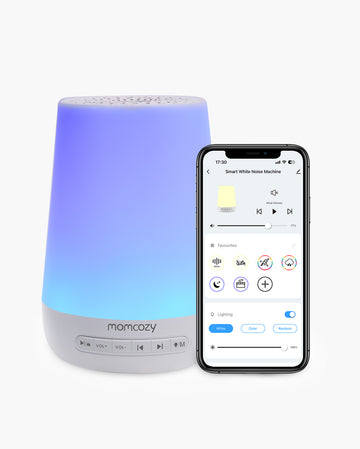
If you have just opened a Momcozy baby sound machine, start by checking the model number before following any setup steps. Momcozy models share common sound, light, and timer functions, but app pairing, Bluetooth speaker mode, child lock, and timer controls differ by model. For example, the WN02 Smart Baby Sound Machine uses app-based remote control, while the WN06 Portable Sound Machine is operated mainly from the device and adds Bluetooth speaker mode. This guide will help you use the correct controls without mixing instructions between models.
Key Takeaways
Identify your model first because app pairing, Bluetooth, timers, child lock, lighting, and power controls vary.
The Smart Baby Sound Machine - App Remote Control uses Tuya Smart; the DreamSync Tech™ model uses the Momcozy app.
The two portable models rely mainly on physical controls. Only the Portable Baby Sound Machine adds Bluetooth speaker mode.
Use programs, alarms, child lock, timers, and wake features only when your model's current manual confirms them.
Persistent connection, charging, button, timer, or sound problems require model-specific support.
For baby use, follow current volume and placement guidance. A sound machine supports the sleep environment but does not replace responsive care.
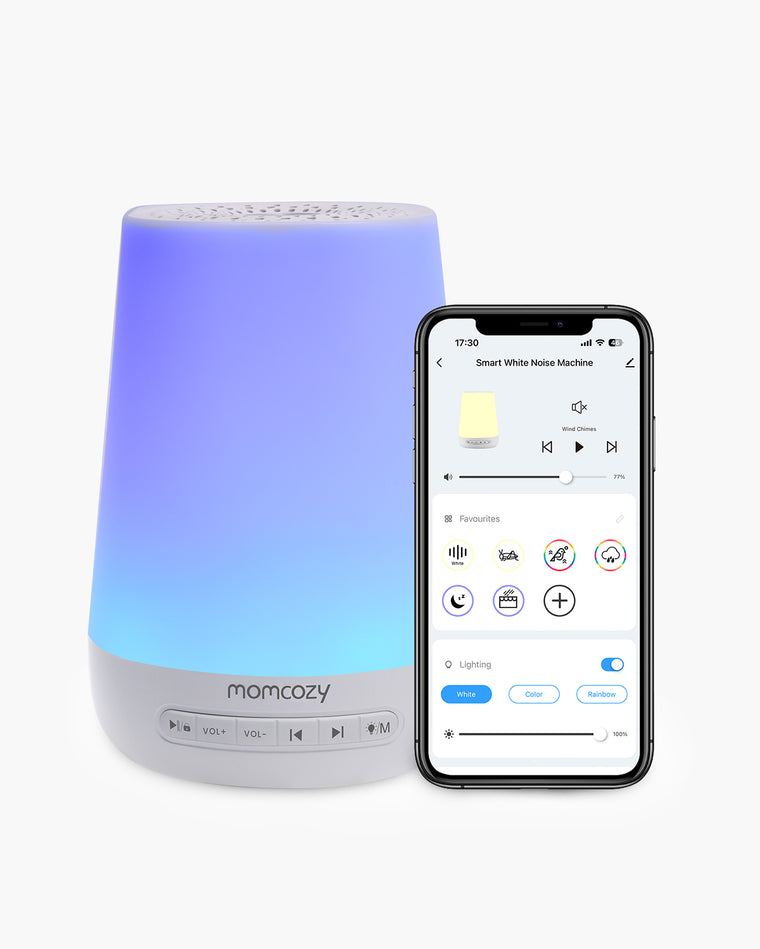
Which Momcozy Sound Machine Do You Have?
Find the model number on the product label, packaging, or order page. Then use the table below to identify its main controls and the situations it is designed for.
| Model | Best For / Main Use | Main Functions |
|---|---|---|
| Smart Baby Sound Machine – App Remote Control (WN02) | Home use and remote adjustments from another room | Device controls, Tuya Smart app, sound and light settings, 30/60/90-minute timer, Programs, and child lock |
| Portable Baby Sound Machine with Long Battery Life (WN03) | Travel, naps, and routines without Wi-Fi or an app | Physical controls, built-in sounds and light, 1/3/6-hour timer, untimed playback, and child lock |
| DreamSync Tech™ Smart Baby Sound Machine (WN05) | App-managed bedtime and wake routines at home | Device and Momcozy app controls, customizable sound and light, Timer, Alarm Clock, Bluetooth Speaker Mode, and app-based child lock |
| Portable Baby Sound Machine (WN06) | Portable sound playback with optional phone audio | Physical controls, built-in sounds and light, Bluetooth Speaker Mode, 1/3/6-hour timer, untimed playback, and child lock |
| Sunrise Sound Machine (WN07) | Bedside clock, gentle wake-up, and sunrise routines | Physical sound, clock, light, alarm, snooze, and sunrise controls |
What Should You Do Before First Use?
Confirm the model, then follow its specified power or charging method. Do not borrow another model's adapter, pairing button, or startup sequence.
Smart Baby Sound Machine - App Remote Control: Connect the specified cable, switch the unit on, and hold Timer for at least three seconds to pair. Tuya Smart needs Bluetooth and Location permissions and 2.4 GHz Wi-Fi during setup.
DreamSync Tech™ Smart Baby Sound Machine: Connect the supplied DC adapter. Hold the Wi-Fi button underneath the device until its indicator flashes. Allow the permissions requested by the Momcozy app.
The two portable models: Charge and power on the machine as its manual directs, then use the physical controls. The Portable Baby Sound Machine's Bluetooth option is an audio mode, not app setup.
Sunrise Sound Machine: Set the current clock time before configuring alarm and sunrise functions.
Place the machine on a stable, uncovered surface. Check the sound level at the crib because distance and room acoustics affect the volume reaching it.
How Do You Play, Pause, Change Sounds, and Adjust Volume?
On every model, turn the unit on, start a built-in sound, select a track, and adjust the volume. The controls differ.
Smart Baby Sound Machine - App Remote Control: Use play/pause, previous/next, and volume controls, or make the same changes in Tuya Smart.
Portable Baby Sound Machine with Long Battery Life: Use its physical previous/next, play/pause, and volume controls. It has no app.
DreamSync Tech™ model: Use the device or Momcozy app for built-in sounds. Speaker Mode plays phone audio separately.
Portable Baby Sound Machine: Use its physical controls for built-in tracks. Enter Bluetooth mode only for phone audio.
Sunrise Sound Machine: Use Sound Play/Pause, Previous Track, Next Track, and the volume controls in its manual.
For newborns, keep white noise for sleep at an appropriate volume and respond to your baby's needs.
How Do You Use the Night Light?
The Smart Baby Sound Machine - App Remote Control cycles through light modes with a physical control. Its top touch surface turns the light on or off and adjusts brightness, while Tuya Smart provides more lighting controls.

The Long Battery Life model uses its top touch control for light and brightness. The DreamSync Tech™ model combines physical control with app customization. On the Portable Baby Sound Machine, press the light control for on or off and hold it to adjust brightness.
The Sunrise Sound Machine uses Light/Snooze to turn on and cycle colors, with a separate brightness control. A low light can help during feeding or resettling without turning on the main room light.
How Do You Use Timers, Programs, Alarms, and Wake Features?
A timer stops the current sound or light after a set period. A Program schedules selected behavior. An Alarm Clock starts chosen effects at a set time, while a sunrise routine changes the light before wake time.
Smart Baby Sound Machine - App Remote Control: Timer cycles through 30, 60, or 90 minutes and off. Tuya Smart Programs schedule selected sound and light behavior.
Portable Baby Sound Machine with Long Battery Life: Press the timer control to cycle through 1, 3, or 6 hours and untimed operation.
DreamSync Tech™ model: The app Timer controls shutoff. Alarm Clock sets the time, sound and light effects, and repeating days.
Portable Baby Sound Machine: Press the timer control to cycle through 1, 3, or 6 hours and untimed operation.
Sunrise Sound Machine: Set the clock first, then follow the current manual for timer, alarm, snooze, and sunrise controls. Confirm the approved manual before using a specific timer duration.
The timer controls duration only. Choose timed or overnight playback according to how the sound machine fits into your baby's sleep routine.
How Do You Use App Control on WN02 and WN05?
Only these two models in this guide use an app, and they do not use the same one. Pair them separately using the correct sequence.
WN02 — Tuya Smart App
- Connect the Smart Baby Sound Machine - App Remote Control to its specified power source and switch it on.
- Hold the Timer button for at least three seconds. The pairing indicator should flash.
- Install Tuya Smart, create an account, and allow Bluetooth and Location access when prompted.
- Confirm that your phone can connect the device to a 2.4 GHz Wi-Fi network.
- Tap the plus icon, select Add Device, choose the detected machine, and enter the Wi-Fi credentials.
After pairing, Tuya Smart controls sounds, volume, lighting, Favorites, Timer, and Programs. For a failed connection, confirm the model and app, then use the Support Center.
WN05 — Momcozy App
- Connect the DreamSync Tech™ Smart Baby Sound Machine with its supplied DC power adapter.
- Hold the Wi-Fi pairing button underneath the device until the Wi-Fi indicator flashes.
- Open the Momcozy app and allow the phone permissions requested for setup.
- Confirm 2.4 GHz Wi-Fi, use the app's add-device flow, and complete the connection.
The Momcozy app manages built-in sound and light settings, Timer, Alarm Clock, Child Lock, and Speaker Mode. Do not use Tuya Smart for this model.

How Do You Use Bluetooth Speaker Mode on WN05 and WN06?
Bluetooth Speaker Mode plays phone audio; Wi-Fi app control manages the machine's built-in features.
On the DreamSync Tech™ model, hold the designated device button for two seconds or enable Speaker Mode in the Momcozy app. When BLUE appears, pair with the DreamSync device from the phone's Bluetooth list.
On the Portable Baby Sound Machine, turn the unit on and hold the Power control for two seconds to enter Bluetooth Speaker Mode. Open the phone's Bluetooth settings and select WN06. The Portable Baby Sound Machine with Long Battery Life does not support Bluetooth or app connectivity.
How Do You Turn Child Lock On or Off?
Child lock prevents accidental changes. When active, it can make physical buttons appear unresponsive.
On the Smart Baby Sound Machine - App Remote Control, hold Play/Pause/Child Lock for three seconds. On the Portable Baby Sound Machine with Long Battery Life, hold Timer/Child Lock for three seconds. On the DreamSync Tech™ model, use Child Lock in the Momcozy app; app access remains available while physical controls are locked. On the Portable Baby Sound Machine, hold Timer/Child Control for three seconds. The Sunrise Sound Machine does not currently support button locking.
How Can You Turn the Controls Into a Simple Daily Routine?
Choose a few settings every caregiver can repeat, and recheck volume after moving the machine.
| Routine | What the Parent Is Trying to Avoid | Useful Controls | Practical Approach |
|---|---|---|---|
| Bedtime or nap | Rebuilding settings every time | Favorite sound, light level, timer, or Program where supported | Save or remember one repeatable combination rather than changing every setting |
| Night feed or resettling | Entering the room only to change settings | App remote control on supported models; gentle light controls | Change only the sound or light that needs adjustment without promising longer sleep |
| Travel or grandparents' home | Losing familiar cues in a different room | Physical controls, timer, portable battery, or Bluetooth mode where relevant | Recheck placement and volume because the room and sleeping space have changed |
For travel, compare battery life, connectivity, and phone access when choosing between a portable sound machine and phone app.
What Safe-Use Checks Should Stay Outside the Operating Instructions?
Set a safe sound machine volume for your newborn according to the level measured at the sleep space, distance, room acoustics, and duration.
A sound machine supports a consistent environment without replacing responsive care or professional advice. As your family's needs change, you can gradually reduce white noise.
What If Your Momcozy Sound Machine Does Not Work as Expected?
Confirm the model, power source, child-lock state, and correct app or manual. Do not use another model's reset instructions. Until the dedicated troubleshooting article is available, use the official Momcozy Sound Machine Support Center for pairing, reset, charging, button, timer, or unusual-sound problems.

FAQs About Momcozy Sound Machine Controls
Q1. How Do I Know Which Momcozy Sound Machine Model I Have?
Check the label, packaging, order details, or Support Center. Match the full product name and model number.
Q2. Which Momcozy Sound Machines Use an App?
The Smart Baby Sound Machine - App Remote Control and DreamSync Tech™ model use apps. The other models use physical controls.
Q3. What App Does the WN02 Momcozy Sound Machine Use?
The Smart Baby Sound Machine - App Remote Control currently uses Tuya Smart and requires 2.4 GHz Wi-Fi during pairing.
Q4. Does WN03 Connect to the Momcozy App?
No. The Portable Baby Sound Machine with Long Battery Life uses physical controls and does not support app connectivity.
Q5. Can WN06 Connect to a Phone With Bluetooth?
Yes. Enter Bluetooth Speaker Mode on the Portable Baby Sound Machine, then select WN06 in the phone's Bluetooth settings. This connection plays phone audio and does not provide app remote control.
Q6. Can I Use WN05 Without Speaker Mode?
Yes. Speaker Mode is optional. The DreamSync Tech™ model can play its built-in sounds and use its regular device or app controls without streaming phone audio.
Q7. Can I Use a Momcozy Sound Machine Without Wi-Fi?
Physical controls remain available according to the model. Wi-Fi supports remote app features; Bluetooth Speaker Mode is a separate connection.
Q8. Why Is My Momcozy Sound Machine Not Responding to the Buttons?
Check child lock and the specified power source. If buttons remain unresponsive, use that model's Support Center guidance.
Q9. How Do I Reset a Momcozy Sound Machine?
Reset procedures are model-specific. Follow the current manual or Support Center instructions for the full product name.
Q10. Can I Use a Momcozy Sound Machine While It Is Charging or Plugged In?
It depends on the model. Some use an adapter, while some rechargeable models may restrict playback during charging. Follow the manual, keep the unit uncovered, and stop if it becomes unusually hot.
Q11. How Long Does a Momcozy Sound Machine Battery Last?
Runtime varies with the model, volume, light or Bluetooth use, battery condition, and temperature. Current support lists up to 10 hours of continuous playback for the Long Battery Life model after a full charge; use the relevant manual for other models.
Start Using Your Momcozy Sound Machine With Confidence
Identify your Momcozy sound machine first, then follow only that model's controls for sound, light, timers, app pairing, Bluetooth, alarms, and child lock. Keeping everyday operation separate from troubleshooting reduces the chance of following the wrong instructions. You can confirm the current product name and model in our baby sound machine collection.