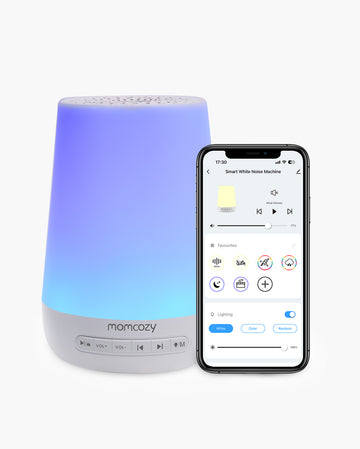
If your Momcozy baby sound machine will not turn on, charge, connect, respond to buttons, or play sound normally, start with the symptom rather than trying random resets. WN02, WN03, WN05, WN06, and WN07 share a few basic checks, but their power, app, Bluetooth, timer, and display behavior are not identical. Use this guide to identify the issue, try safe checks in order, and know when it is time to contact Momcozy Support. If you are learning everyday controls rather than fixing a fault, check the official manual for your exact model.

Key Takeaways
-
Start with the exact symptom and model. A fix for a smart WN05 feature may not apply to a portable WN06 sound machine.
-
For power, charging, sound, and button issues, begin with the easiest reversible check before changing settings or looking for a reset.
-
Test short battery life and audio problems with built-in sound and a stable power state first. Bluetooth, lights, schedules, and timers can change the result.
-
If the issue continues after the official checks, collect your model, serial number, proof of purchase, and a clear photo or video before contacting Support.
Start Here: Choose Your Sound Machine Issue
Select the symptom that best matches what you see. Tap any item to jump straight to its fix.
Power & Battery
Controls & Connection
🔗 App, Wi-Fi & Bluetooth Connection
Sound & Smart Functions
🎵 Weak, Distorted or Unusual Sound
⏱ Timer, Loop, Program or Alarm
⏰ Display, Clock or Status Icons
⭐ WN05 Starts Playing by Itself
Support
Before You Troubleshoot: Run These Two-Minute Checks
Run these basics once, then follow only the section that matches your symptom. This helps you avoid repeating steps that will not apply to your model.
- Confirm the model on the device or packaging: WN02, WN03, WN05, WN06, or WN07.
- Use the correct cable and power source for that model. Make sure ports are dry, clean, and fully connected.
- If your model supports Child Lock, check that it is not enabled before assuming the buttons have failed.
- Restart the device once using the model-appropriate method. Do not repeatedly power-cycle or factory-reset without the manual.
- For app or Bluetooth issues, keep your phone close, allow the required permissions, and make sure the device is not still connected to another phone.
- For sound issues, test a built-in sound at moderate volume before testing Bluetooth audio.
Stop troubleshooting and contact Support if you notice visible damage, liquid inside the device, unusual heat, a burnt smell, a damaged cable or adapter, or repeated abnormal behavior.
Why Won't My Momcozy Sound Machine Turn On or Turn Off?
Start with the power behavior for your exact model. Avoid a universal "hold the power button for three seconds" fix: models do not all use the same controls. For WN02, check that the bottom power switch is set to ON. If it is unresponsive, turn the switch OFF, charge it for the interval stated in the official guidance, then return it to ON. If the unit shuts down unexpectedly, also check whether a timer or app schedule is active.
For WN03, WN06, and WN07, follow the current manual for the normal power-on method, then confirm adequate charge or a stable power connection. On WN05, an icon such as the clock or Wi-Fi indicator can remain visible in powered standby even when audio is not playing. If the machine repeatedly shuts down when no timer or schedule is active and power is stable, do not keep cycling it. Save the details and contact Support. 🔙

Member price
$46.00$57.00código Ahorrar 20%
Member price
$29.00$36.00código Ahorrar 20%
Why Isn't My Momcozy Sound Machine Charging?
First, check the model-specific cable and adapter rather than swapping in an unverified charging setup. Make sure the wall outlet works, the cable is fully seated, and the port is clean and dry. Do not use a cable or adapter that looks bent, frayed, hot, or damaged.
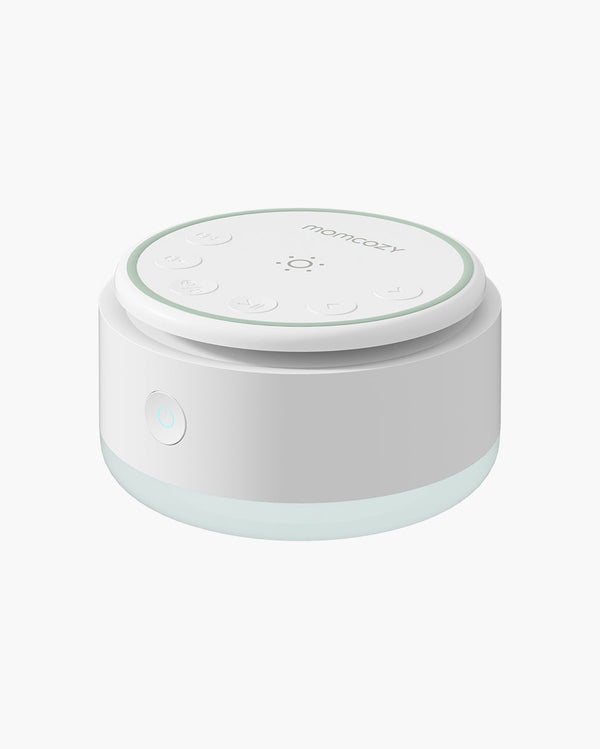
For WN06, use a compatible USB-C cable and a 5V/1A USB power source connected to a working wall outlet. Charge for at least 30 minutes, then check the indicator: pulsing green indicates charging, while solid green indicates a full charge. If the indicator does not appear or its status does not advance, reconnect the cable once and test one confirmed-compatible cable or adapter, replacing only one item at a time. WN02 uses different charging guidance, so do not copy WN06 indicator behavior to that model. 🔙
Why Does the Battery Run Down So Quickly?
A short runtime is easiest to assess with a controlled test, not during a high-demand day. For models with published battery guidance, fully charge the device, disconnect external power, choose one built-in sound, use a moderate volume, turn the light and timer off, and exit Bluetooth before timing the result. This separates the battery from features that can draw additional power.
Do not repeat full-discharge tests. When comparing expected travel runtime rather than troubleshooting a possible fault, consider the practical trade-offs between a portable sound machine and a phone app for baby travel. If the battery still appears to drain unusually fast after one controlled test, share the model and your test settings with Support. 🔙
Why Aren't the Buttons Responding?
Check Child Lock first on models that support it. A locked device can look like a failed keypad, so disable the lock through the official app or manual before taking further action. Then restart the device once and test the controls again.
With the sound machine powered off, inspect the control area for dust or debris. Use a dry, soft-bristled brush or compressed air only; do not use liquids, sharp objects, or force. Test one key at a time. This helps identify whether a single control is affected or the entire keypad is unresponsive. A button that is stuck, sunken, loose, visibly damaged, or still unresponsive after these checks needs a Support review. 🔙
Why Won't the App, Wi-Fi, or Bluetooth Connect?
These are not one universal connection issue. WN02 and WN05 use smart/app functions, while Bluetooth speaker pairing on supported models is a separate function. Confirm that the sound machine is in the correct pairing mode for its model, then check that your phone's Bluetooth and any required app permissions are enabled.
Move the phone close to the device, disconnect any old paired phone, and reduce obvious wireless interference where practical. Restart your phone's Bluetooth only after confirming pairing mode. If needed, try another phone to help separate a phone compatibility issue from a device issue. Do not label WN06 as an app-controlled model when you are troubleshooting Bluetooth speaker mode, and do not use a universal factory-reset sequence. Use a model-specific reset only when the current manual or official Support page instructs you to do so. 🔙

Why Does the Sound Seem Weak, Distorted, Crackly, or Unusual?
Place the sound machine on a flat, open surface and make sure the speaker opening is not covered. Then compare two or three built-in sounds at a moderate level. If only one sound behaves differently, that does not automatically mean the speaker is failing.
For Bluetooth-capable models, exit Bluetooth and test built-in sounds first. After that, test one known-good local audio source separately. Confirm the battery is adequately charged or the power connection is stable before judging sound quality. If static or crackling persists across several built-in sounds, or the speaker grille or casing looks loose or damaged, stop testing and contact Support. If volume, rather than audio quality, is the concern, safe sound levels for newborns provide a better benchmark than hardware troubleshooting. 🔙
Why Isn't the Timer, Loop, Program, or Alarm Working Properly?
First confirm that the feature is supported on your model and was set according to the current manual. Look for the relevant timer or status icon instead of assuming the setting saved. Test one different supported duration, or turn the timer off and enable it once more. Low power can also affect timer or loop behavior, so charge the device or confirm stable power before repeating the test.
For WN02 and WN05 smart features, make sure the app is current and allow settings time to synchronize after reconnecting. If an official firmware update is available, install it through the approved path before retesting. Do not sideload firmware or use reset instructions from a different model. 🔙
Why Is the Display, Clock, or Status Icon Wrong?
Keep display troubleshooting model-specific. On WN07, make sure the supplied adapter is connected to a working wall outlet, then adjust the Screen Brightness Knob rather than the Night Light Brightness Knob. If the time is wrong, use the current manual's clock-setting sequence for your unit. A frozen display may justify one controlled restart: disconnect power for 30 seconds, reconnect, and set the time again.
On WN05, distinguish a clock or Wi-Fi icon, lock status, and app-controlled settings from a true display fault. Repeated flickering, missing display segments, or recurring resets are clear reasons to contact Support. Have a photo or short video ready so the team can see exactly what appears on the screen. 🔙
Why Does WN05 Start Playing Music by Itself?
Treat automatic playback on WN05 as a smart-schedule issue before treating it as a general sound-machine failure. Check the app for alarms, programs, schedules, and timer-related settings. If the behavior continues, follow the official Support interval for disconnecting and reconnecting power, then allow the app to synchronize before observing the device again.
If music starts around the same time each day, take screenshots of active schedules and note the time pattern. That information is more useful than repeatedly deleting the app or factory-resetting the device. Only reset or remove app settings when the current WN05 guidance specifically calls for it. 🔙
When Should You Stop Troubleshooting and Contact Momcozy Support?
Contact Momcozy Support when the symptom remains after the official model-specific checks, or when you notice physical damage, liquid ingress, abnormal heat, a burnt smell, damaged charging hardware, repeated resets, or unstable operation. Continuing to use a damaged power accessory is not a safe workaround.
- Exact model and serial number (SN)
- Proof of purchase, if available
- A brief description of the symptom and when it started
- A clear photo or short video of the issue
- For smart models: app version, phone model/operating system, screenshots of schedules or error states, and whether the issue occurs with built-in sound, Bluetooth, or both
Start at the Momcozy Sound Machine Support Center so you can select the help path for your model. 🔙

FAQs
Q1. How Do I Reset a Momcozy Sound Machine?
Use only the reset method in the current manual or official support page for your exact model. A restart, Bluetooth re-pair, and factory reset are different actions.
Q2. Why Is My Momcozy Sound Machine Stuck in Child Lock?
Check for the Child Lock indicator and disable the lock through the official app or manual. Then restart once and test the buttons individually.
Q3. Why Does My Sound Machine Turn Off by Itself?
Check charge or power first, then review active timers or app schedules. WN02 and WN05 can have model-specific scheduled behavior.
Q4. Why Is My Momcozy Sound Machine Not Showing up on My Phone?
Confirm the model supports the connection type you are trying to use, enter the correct pairing mode, remove old connections, and keep the phone nearby.
Q5. Can Another Phone Block Pairing?
Yes. A previous connection can interfere with a new pairing attempt, so disconnect the old phone before trying again.
Q6. Can a Low Battery Affect the Timer?
It can affect timer or loop behavior. Recharge or confirm stable power, then test one supported duration again.
Q7. Why Is WN06 Bluetooth Audio Different From Built-in Sounds?
Test built-in sounds first, then one known-good local audio source. This helps isolate the speaker from the Bluetooth source or connection.
Q8. Why Does the WN05 Clock or Wi-Fi Icon Stay on After I Stop Sound?
This can indicate powered standby rather than active playback. Check the model’s display and app guidance before assuming a fault.
Q9. What Should I Send Support if Troubleshooting Does Not Help?
Include the model, SN, proof of purchase, a clear symptom description, and photos or video. For smart features, include app and phone details too.
Balanced Sleep for Everyday Family Life
A symptom-first approach makes troubleshooting less stressful: identify the model, run the quick checks, and separate power, controls, connection, sound, timer, and display behavior before changing anything. Because charging indicators, reset steps, app behavior, and smart features differ across Momcozy sound machines, do not copy a fix from another model. When the official path is exhausted, the fastest next step is a clear Support handoff with the details that help the team diagnose the issue.
Questions about using a sound machine as part of a baby sleep routine are separate from device faults. Unresolved hardware or software issues should be handled through Momcozy product support.